
Getting Started with Noctiluca Server
This guide walks you through installing Noctiluca Server on macOS and setting up your first remote connection.
System Requirements
| Item | Minimum | Recommended |
|---|---|---|
| Prerequisites | A computer running macOS | Mac |
| macOS | 15 (Sequoia) or later Settings UI may appear broken | 26 (Tahoe) or later |
| Processor | Apple Silicon or Intel | Apple Silicon |
| Memory | 4GB RAM | 8GB RAM or more |
| Network | A network environment that allows inbound UDP connections from outside | A wired network environment with at least 10Mbps uplink |
| GPU | Metal-compatible GPU1 | Metal-compatible GPU |
| Video Processor | None2 | A GPU capable of H.264 or HEVC hardware-accelerated encoding |
Installation
- Click the 'Download' button on the Noctiluca official website to download the latest version of the Noctiluca Server
pkgfile. - Run the downloaded
pkgfile to start the installation wizard. - Follow the instructions in the installation wizard to complete the installation.
Permission Settings
Noctiluca Server requires the following permissions in macOS System Settings to share your screen:
- Screen Recording — Required for screen capture
- Accessibility — Required for remote input control
주의
After changing permissions, you must restart Noctiluca Server for the changes to take effect.
Next Steps
Once the installation is complete, you can start a connection from the Navigator client.
Additional Information: Verifying the Installer's Origin
In some cases, you may obtain the Noctiluca Server installer through channels other than the official website. In such cases, we recommend verifying the installer's signer information to confirm that the installer was officially distributed.
What happens if I install a tampered installer?
- Malware may be installed on your system: Malicious code inserted by an attacker could be installed on your system and run in the background without your knowledge.
- Personal files and sensitive data may be leaked: Documents, photos, passwords, financial information, and more could be transmitted to an attacker.
- Your computer activity may be monitored: Keyboard input may be recorded (keylogging), and your webcam and microphone may be activated without authorization.
- Noctiluca Server specifically requires Screen Recording and Accessibility permissions: If a tampered installer abuses these permissions, your screen contents could be transmitted to an attacker in real time, or keyboard and mouse input could be intercepted. Due to the nature of remote desktop software, abuse of these permissions can cause significantly more damage than typical malware.
How to Verify the Signer Information
-
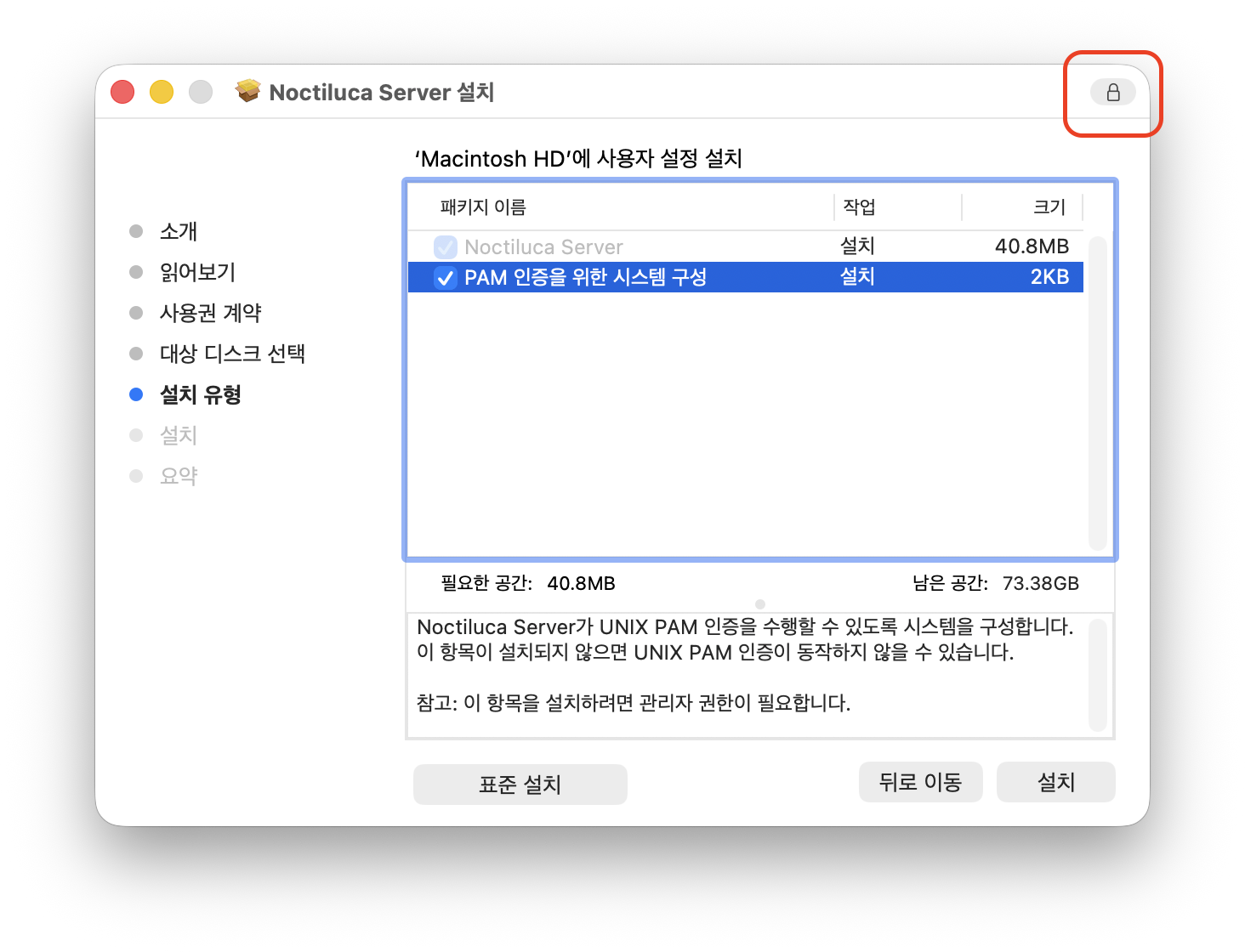
Click the lock icon 🔒 in the upper-right corner of the installation wizard screen.
If this icon is not displayed, the installer may have been tampered with. We recommend stopping the installation and re-downloading the installer from the official website.
-
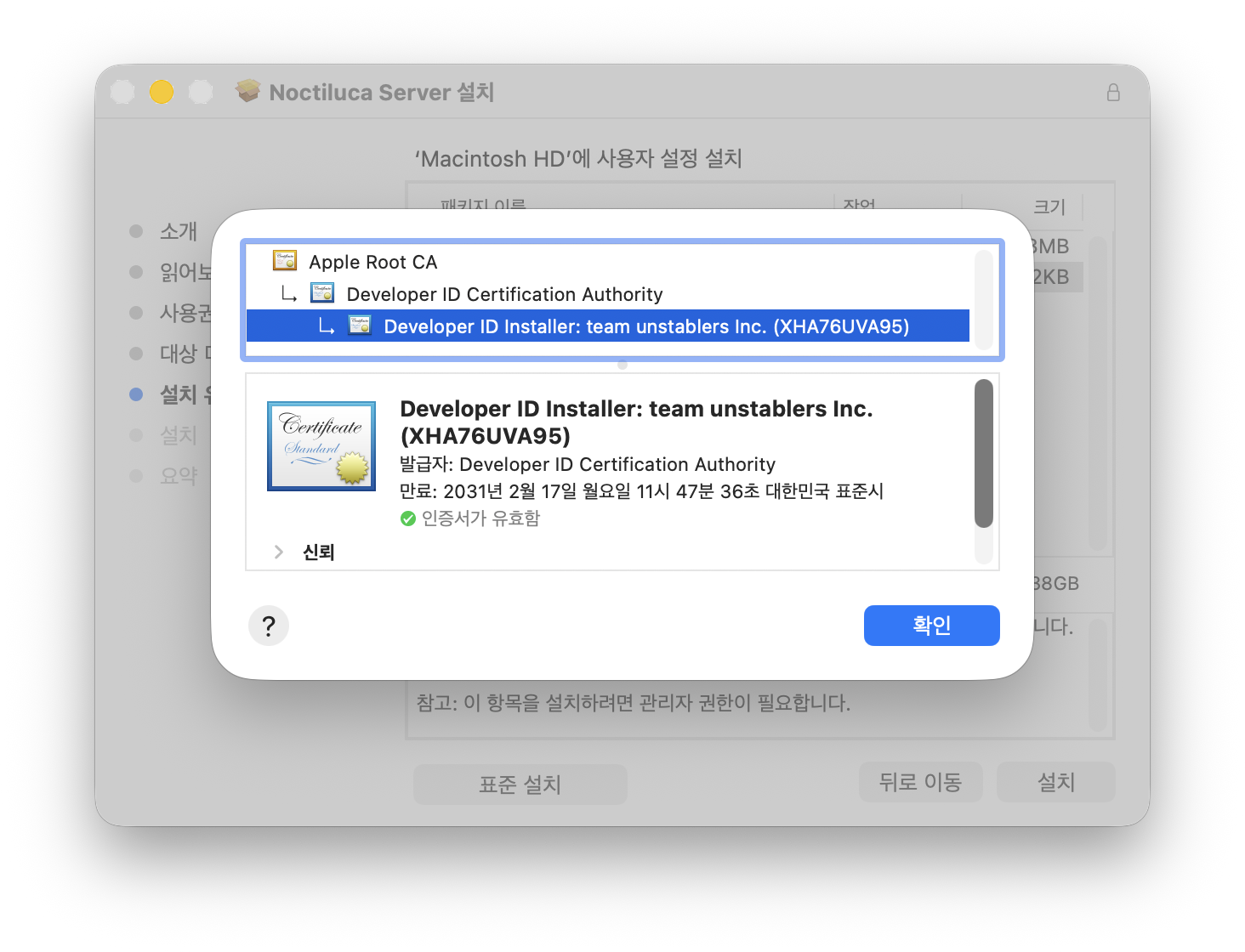
Clicking the lock icon will display the installer's signer information.
Verify that this information includes all three of the following:
Apple Root CA,Developer ID Certification Authority, andDeveloper ID Application: team unstablers Inc. (XHA76UVA95), and that it shows 'Certificate is valid'.If any of these are missing, or if it shows 'Certificate is not valid', the installer may have been tampered with.
Additional Information: Customizing the Installation
Click the 'Customize' button in the installation wizard to select the following options:
- System configuration for PAM authentication: Selecting this option configures the system to allow Noctiluca Server to use UNIX PAM authentication.
Footnotes
- If no Metal-compatible GPU is installed, or if Metal does not function properly due to missing or incompatible graphics drivers, screen projection may fail even if Noctiluca Server launches successfully. ↩ ↩2
- When running macOS in a virtual machine, hardware-accelerated video encoding may not be available depending on the hypervisor or VM configuration. When Noctiluca Server detects that it is running in a virtual machine, it automatically switches the default codec configuration to tiling codecs (MJPG / WebP / ZRLE), performing encoding on the CPU rather than the GPU. However, since these are image compression-based codecs, they may consume significant bandwidth. ↩ ↩2